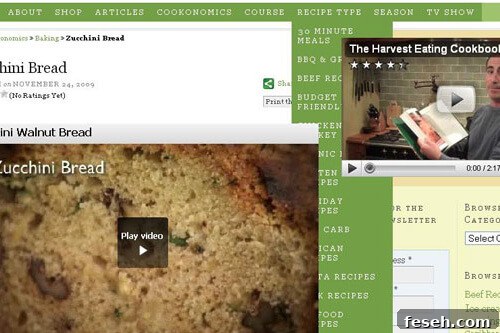
If your site includes videos and you use dropdown menus, you may have noticed the dropdown sometimes appears behind the video instead of on top. This is a common issue caused by how browsers render embedded video players and HTML elements that need to overlap. Rather than restructuring your layout or moving the video lower on the page, you can fix this by adjusting the video embed code so the player allows other elements to appear above it.
The underlying cause is that many embedded players render using an element that creates its own stacking context. By adding a simple parameter to the embed code you can tell the player to use a transparent window mode, which lets other elements like dropdown menus be displayed on top. If you add this parameter when pasting the iframe embed code, the dropdown will render correctly above the video.
For sites where you paste the raw YouTube embed code, edit the iframe tag and include the wmode parameter set to transparent. A typical iframe embed will look like a standard YouTube iframe but with the wmode parameter appended inside the src URL or handled via the player parameters. Making this small change avoids rearranging page elements and keeps your layout intact while ensuring menus display properly.
If you are using a content management system such as WordPress and rely on oEmbed (pasting a YouTube URL into the editor so WordPress converts it automatically to an embed), you can apply the same fix globally by altering how oEmbed generates the embed markup. Instead of manually editing each embed, add a small function to your theme’s functions.php file (or a site-specific plugin) to filter the oEmbed output and inject the transparent wmode parameter into the embed HTML. This approach ensures every YouTube embed produced by oEmbed will include the necessary parameter so dropdowns and other overlapping elements appear above the video player.
When implementing this change, follow these guidelines:
- Use the iframe embed provided by YouTube and add the wmode parameter set to transparent to the player parameters. This allows overlapping elements, such as dropdown menus or modal dialogs, to render above the video.
- For WordPress oEmbed, add a small filter or function to functions.php that modifies the returned embed HTML. This can append the wmode parameter to the embed code so you do not need to edit individual posts.
- Test across browsers and devices. Modern browsers handle overlays and iframe stacking consistently, but verify behavior in the browsers your audience uses most often.
- Avoid unnecessary changes to page layout. Adding the wmode parameter is usually sufficient and keeps your design intact without moving videos or restructuring menus.
This solution is concise and noninvasive. It preserves the natural flow and structure of your site while resolving the visual stacking issue between dropdown menus and embedded video players. Whether you handle embeds manually or rely on a CMS feature like oEmbed, applying the transparent wmode parameter fixes the problem in a straightforward way and keeps your navigation usable and accessible.
Remember to keep backups before editing theme files such as functions.php, and test changes on a staging environment if possible. That ensures you can safely apply the fix site-wide and roll back if anything unexpected occurs. With this small adjustment, your dropdown menus should consistently appear above embedded videos without the need for layout compromises.